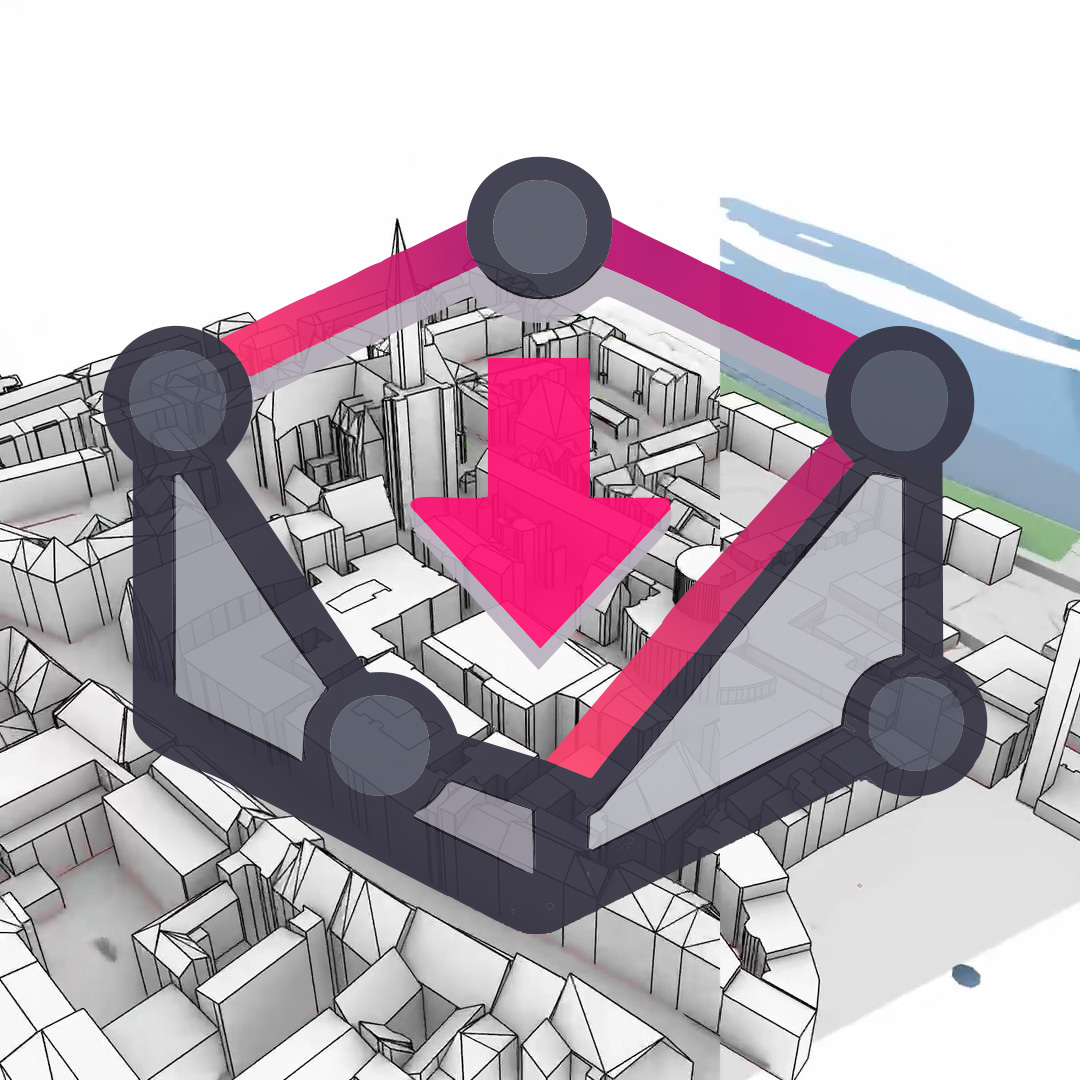
RhinoSpatial is a Grasshopper toolkit for bringing site context directly into Rhino. It is built around one shared Spatial Context: define a study area once, then align maps, vector layers, terrain, building geometry, OpenStreetMap context, and visual reference data inside the same Rhino / Grasshopper workspace.
The plugin is meant for early site analysis, context modeling, concept studies, and design workflows where spatial data should stay close to the model instead of living in a separate GIS detour.
The downloadable Grasshopper definitions show complete starting workflows for WFS, WMS, GeoTIFF, terrain, LoD2 buildings, OSM, and Google 3D Tiles reference context. Replace the service URLs, local files, layers, and API keys with sources that match your own site, data rights, and licensing situation.
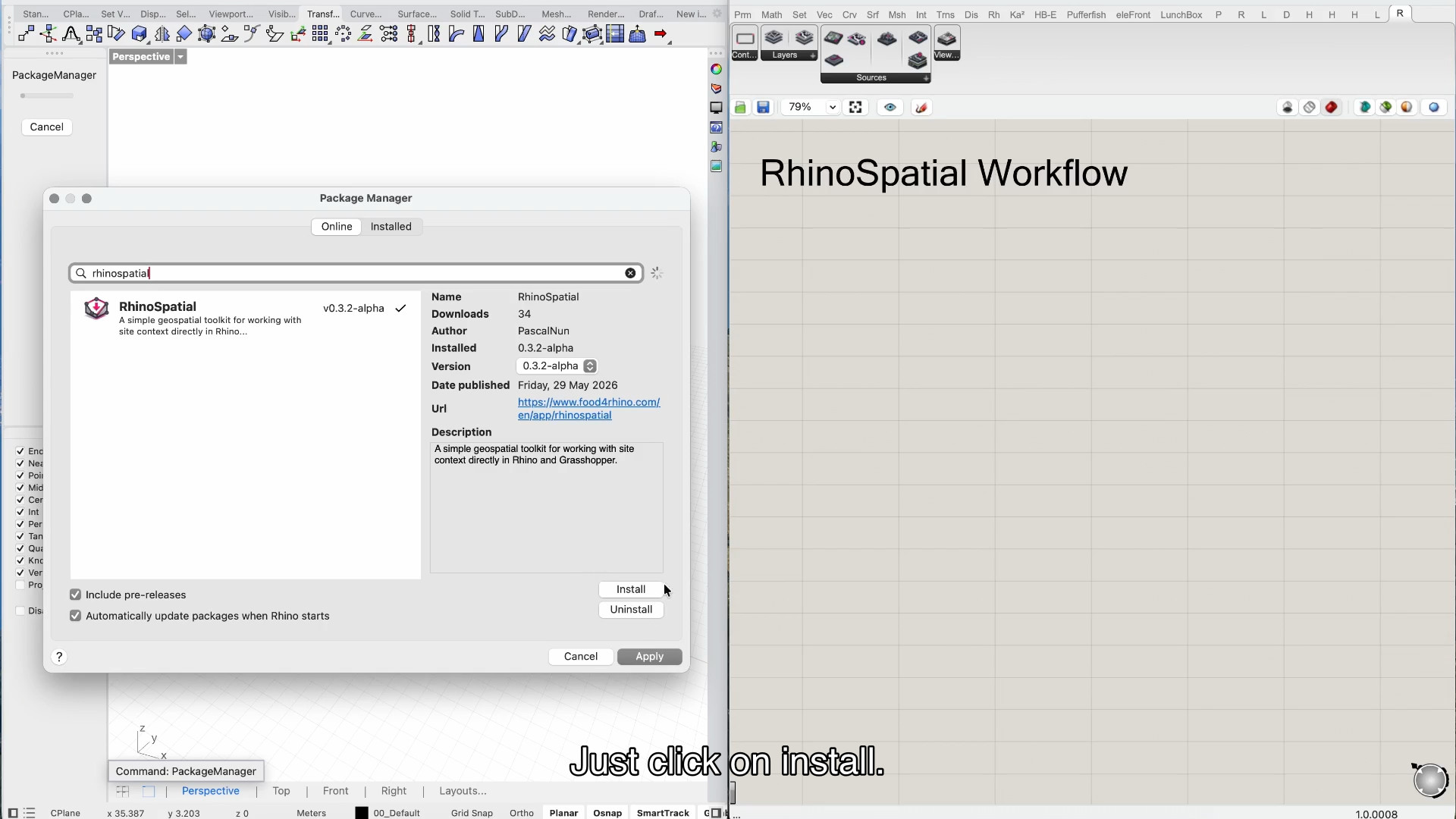
The simplest installation path is Rhino's Package Manager. Search for RhinoSpatial and enable pre-release packages while the plugin is still in alpha. Install it, restart Rhino if Package Manager asks you to, and open Grasshopper to check that the RhinoSpatial tab and components are available.
You can also install a release manually from GitHub. Download the current ZIP package from the releases page and place the plugin files where Rhino / Grasshopper can load them. For most users, Package Manager is the cleaner first option; the manual package is useful when you want to pin a specific alpha version.
Because RhinoSpatial is in alpha, keep older working definitions around when testing a new release. Component names and the shared Spatial Context workflow are intended to stay stable, but provider behavior, local-file handling, and edge cases are still being refined.
RhinoSpatial can be installed through Rhino's Package Manager. Enable pre-releases while the plugin is still in alpha.
2. Spatial Context
Spatial Context is the anchor of the workflow. It stores the selected study area, coordinate reference information, and placement logic that the other RhinoSpatial components use to line up their outputs.
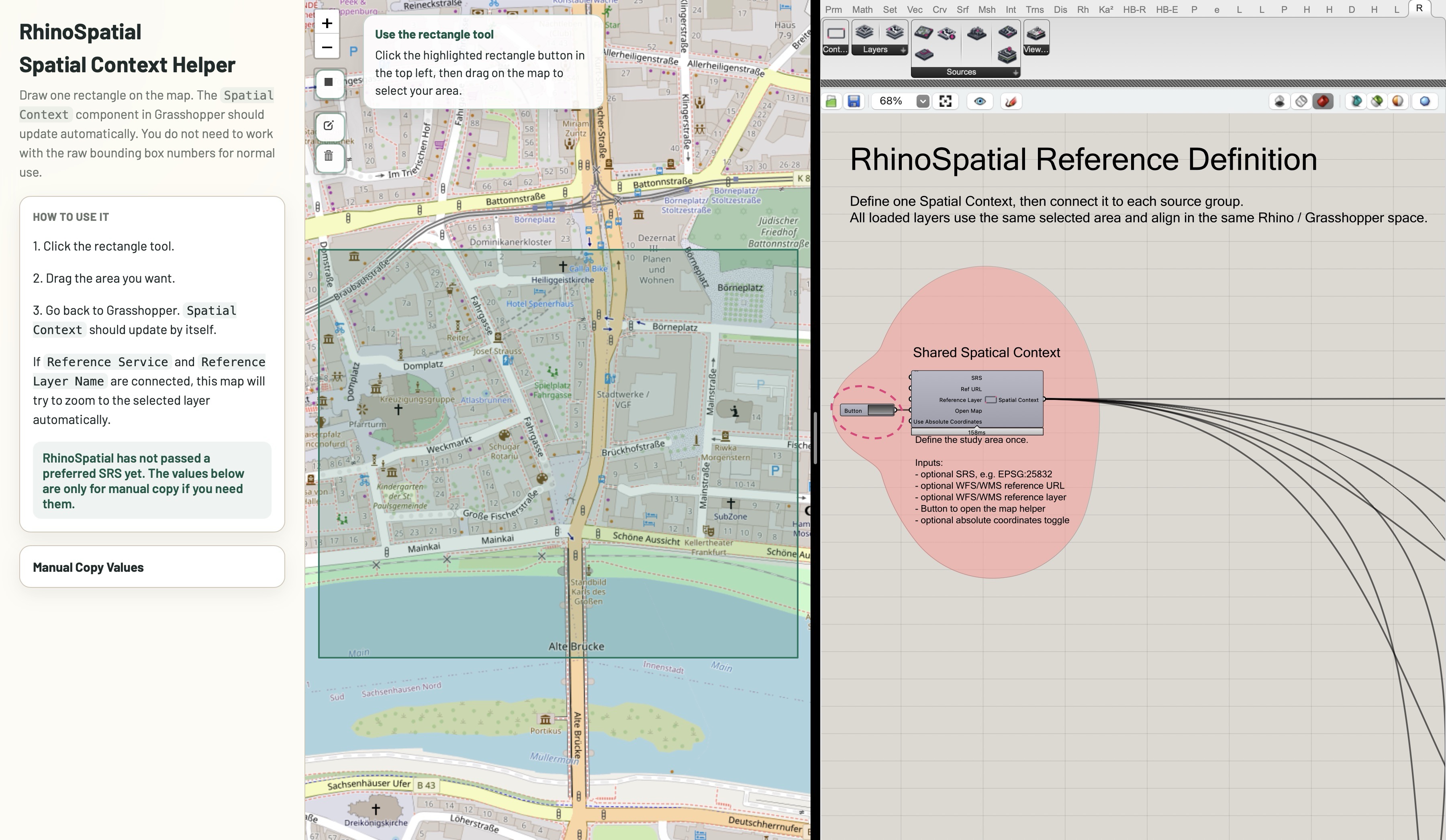
The only required interaction is Open Map. Click the button, draw one rectangle in the browser helper, resize it if needed, and close the helper window. The selected area then becomes the shared input for WFS, WMS, GeoTIFF, terrain, LoD2, OSM, and 3D Tiles workflows.
By default, RhinoSpatial localizes data near Rhino's 0,0 point. That keeps geometry workable in Rhino and avoids the display issues that often come with large real-world coordinates. If a definition really needs source coordinates, enable Use Absolute Coordinates.
The optional Reference Source input can make area selection easier. Connect a WFS, WMS, or WCS service, or a supported local geospatial file, folder, or ZIP archive, before opening the map helper. RhinoSpatial uses only its extent and coordinate-system metadata to open the map near the project; it does not load the referenced data.
Spatial Context defines the shared study area used by every other RhinoSpatial component.
3. Load WFS
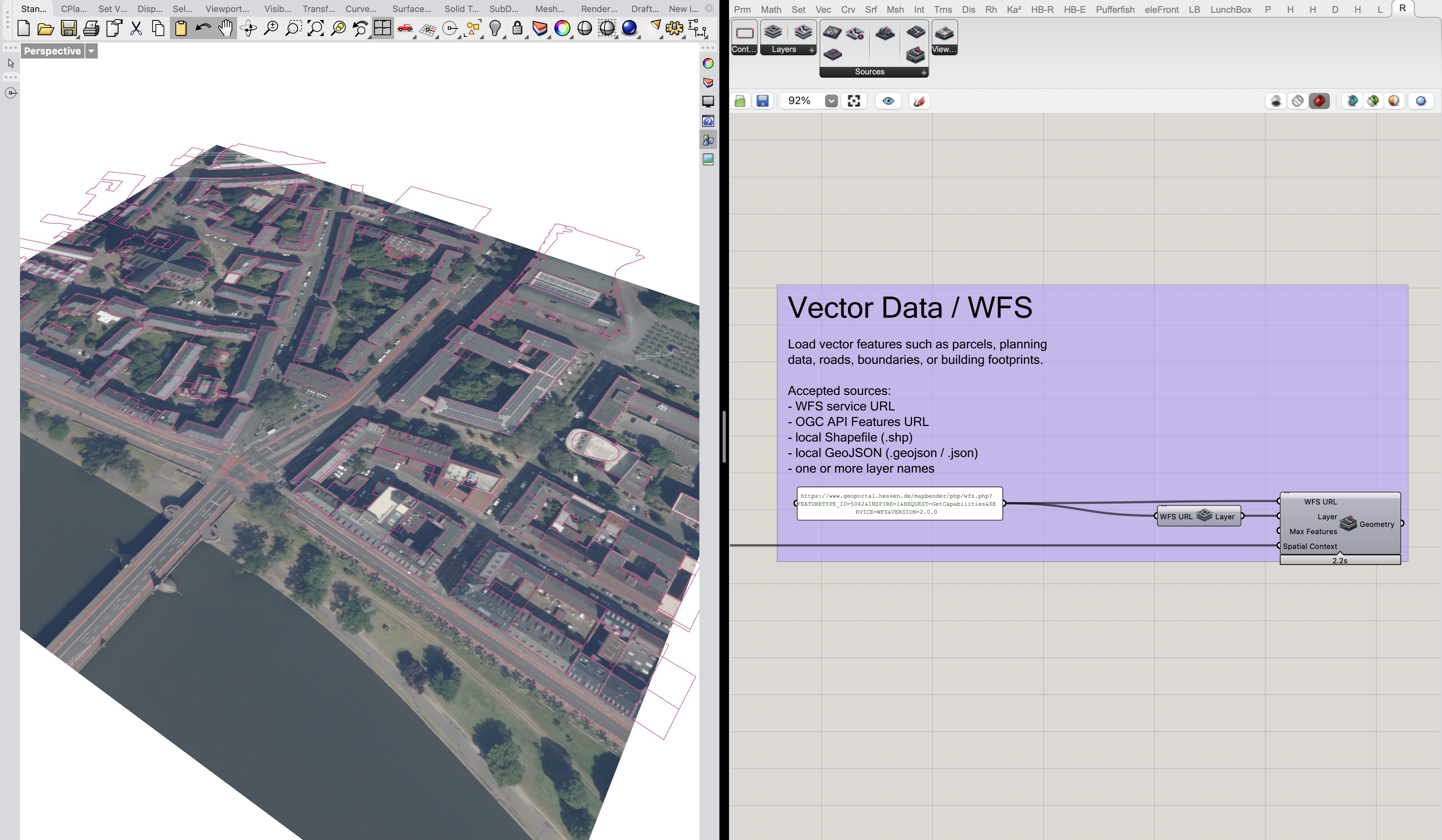
Use Load WFS for vector features such as parcels, boundaries, planning layers, roads, or building footprints. The component is named for WFS, but the source model is broader: it can also work with OGC API Features URLs and local vector files such as Shapefiles or GeoJSON.
A typical service workflow starts with List WFS Layers. Connect the WFS URL, inspect the available layer names in a panel, choose the layer or layers you need, and connect them to Load WFS together with the same Spatial Context used by the rest of the definition.
Load WFS outputs Grasshopper geometry grouped by layer and feature. Polygon and line features become curves; point features become points. Unlike WMS imagery, vector workflows can load multiple layers through one component. Keep the selected study area reasonably bounded, especially when using broad public services, so Grasshopper does not request more features than you actually need.
Load WFS brings vector features into the same local study space.
4. Load WMS
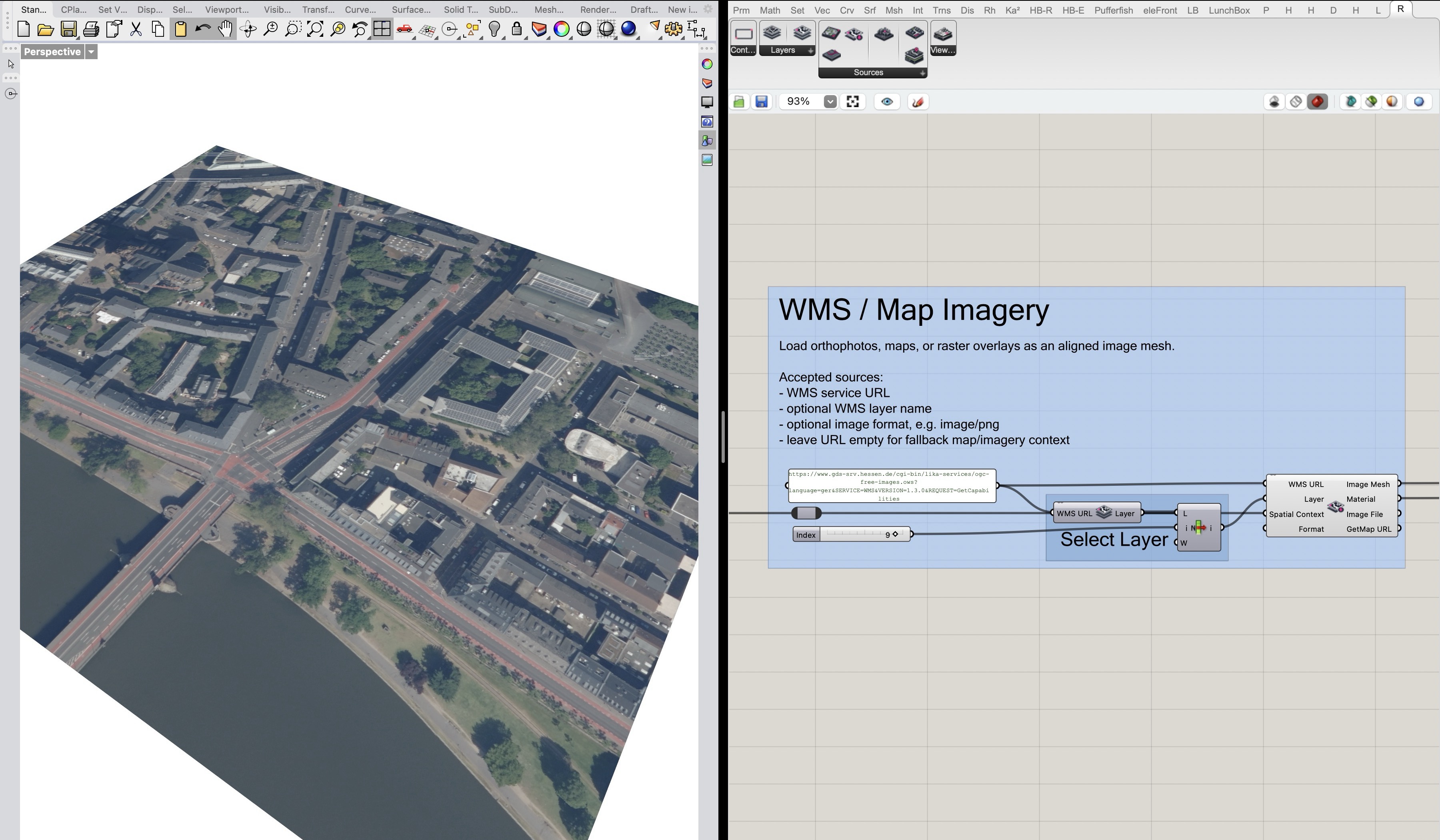
Use Load WMS for map imagery, aerial images, orthophotos, raster overlays, or other image layers served through a WMS endpoint. In RhinoSpatial, the result is an aligned image mesh with a material, so the imagery can sit under or alongside the other context layers.
The common pattern is to connect the WMS URL to List WMS Layers, inspect the available layers, choose one layer with List Item, and connect that layer, the WMS URL, and Spatial Context to Load WMS.
A single Load WMS component loads one layer at a time. If you want several WMS layers, use multiple components so each image request stays explicit and readable. WMS is image-based context; if you need editable lines, parcels, or feature attributes, use the WFS/vector workflow instead.
WMS imagery can be aligned to vector geometry through the same Spatial Context.
5. Load GeoTIFF
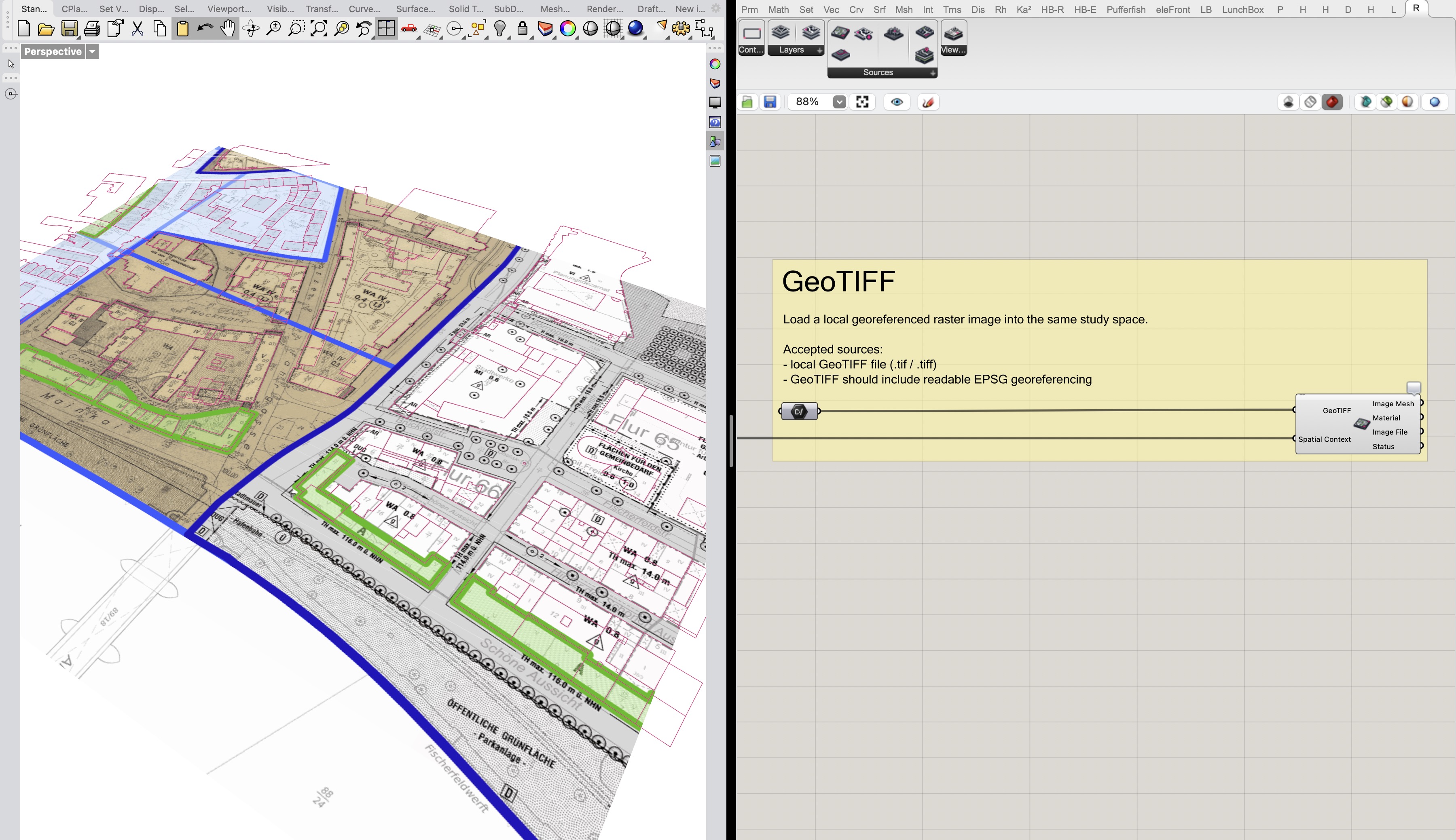
Use Load GeoTIFF when you have a local georeferenced raster image, such as a plan, map export, satellite image, orthophoto, or DEM-derived raster that should sit in the same study area.
The component expects a local file path. Connect a Grasshopper File Path component to a .tif or .tiff file, then connect the same Spatial Context. RhinoSpatial reads the georeferencing and outputs an aligned image mesh, material, image file path, and status message.
The file needs readable geospatial metadata. If RhinoSpatial cannot read the EPSG / coordinate information, or if the raster does not overlap the selected area, it cannot safely decide where the image belongs.
Load GeoTIFF places a local georeferenced raster into the shared study space.
6. Load Terrain
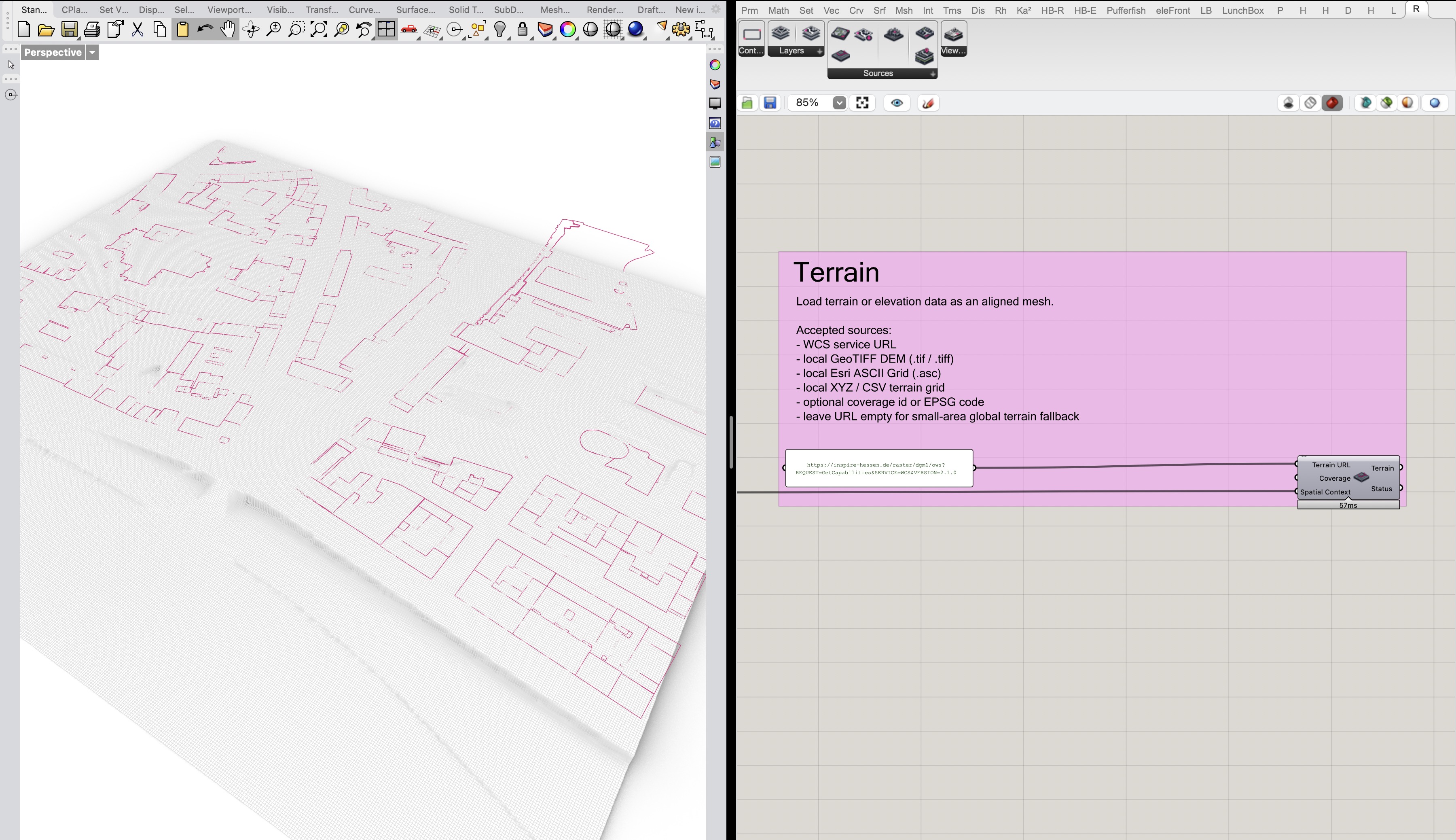
Use Load Terrain to create a ground mesh for the selected study area. This is useful when the model needs elevation context, when LoD2 or OSM buildings should be checked against terrain, or when a flat plan is not enough.
Load Terrain can use a small built-in fallback for quick orientation, but project work should use explicit terrain sources where possible. Supported source types include WCS services, local GeoTIFF DEM files, Esri ASCII Grid files, and regular XYZ/CSV terrain grids.
As with the other components, the terrain source is clipped and placed through Spatial Context. Keep the selected area and source resolution small enough for interactive Grasshopper work, especially when testing public services or high-resolution DEM files.
Terrain data gives the shared study area a ground surface for checking alignment and elevation.
7. Load LoD2 Buildings
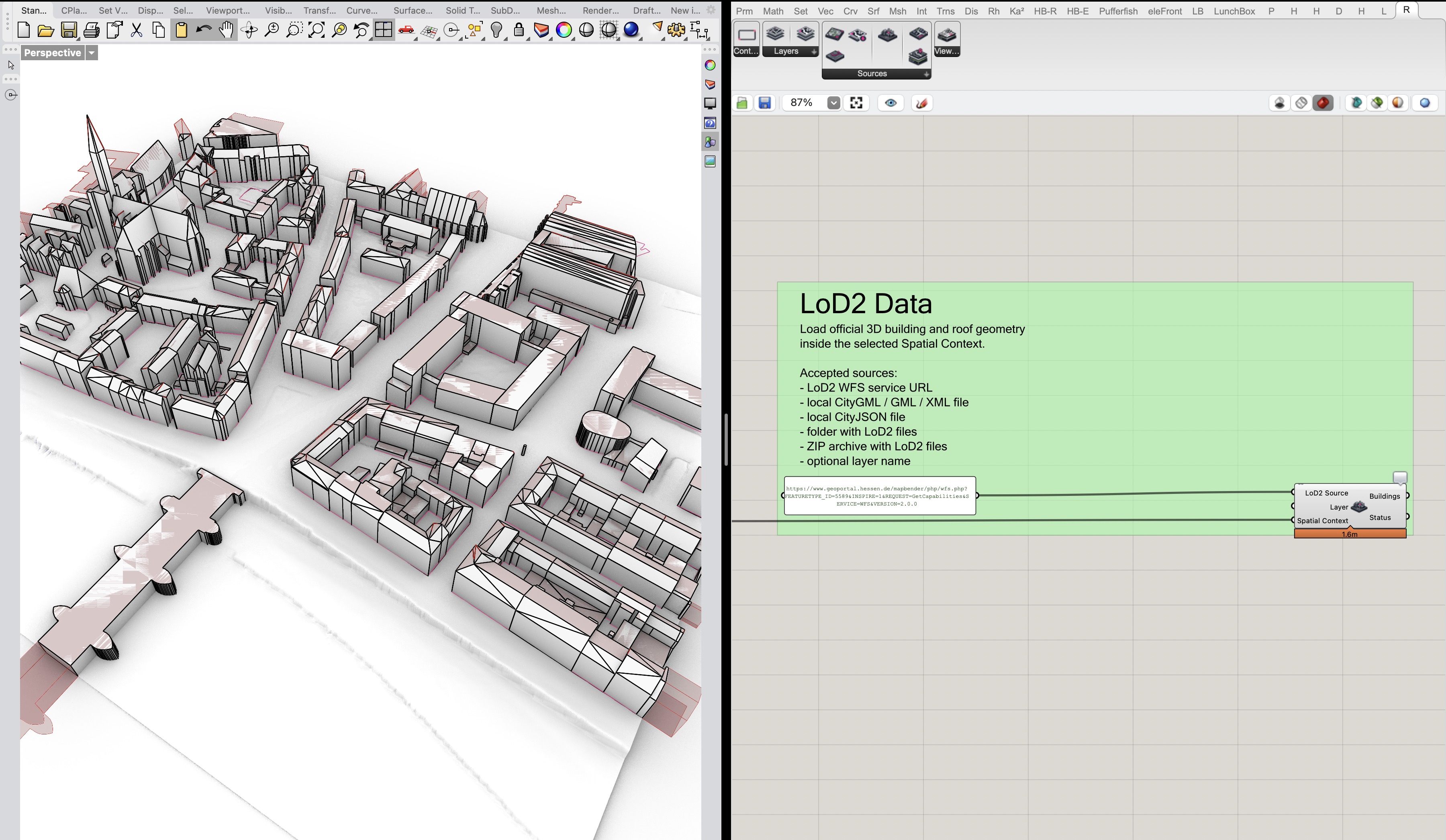
Use Load LoD2 Buildings for official 3D building and roof geometry. This is the component to reach for when you need modeled urban context rather than simple footprints.
The LoD2 Source input can be a LoD2 WFS service, local CityGML / GML / XML files, local CityJSON files, folders, or ZIP archives. If the source is a WFS service, choose the layer when needed. If the source is local data, the Layer input can often stay empty or act as a label.
Load LoD2 Buildings outputs building Breps grouped by layer and building. LoD2 data can be large and provider-specific. RhinoSpatial tries to filter to the selected Spatial Context, but local files and broad services may still take time to inspect. Start with a small area, confirm that the source responds, and then expand carefully.
LoD2 buildings provide official 3D roof and building geometry inside the shared context.
8. Load OSM
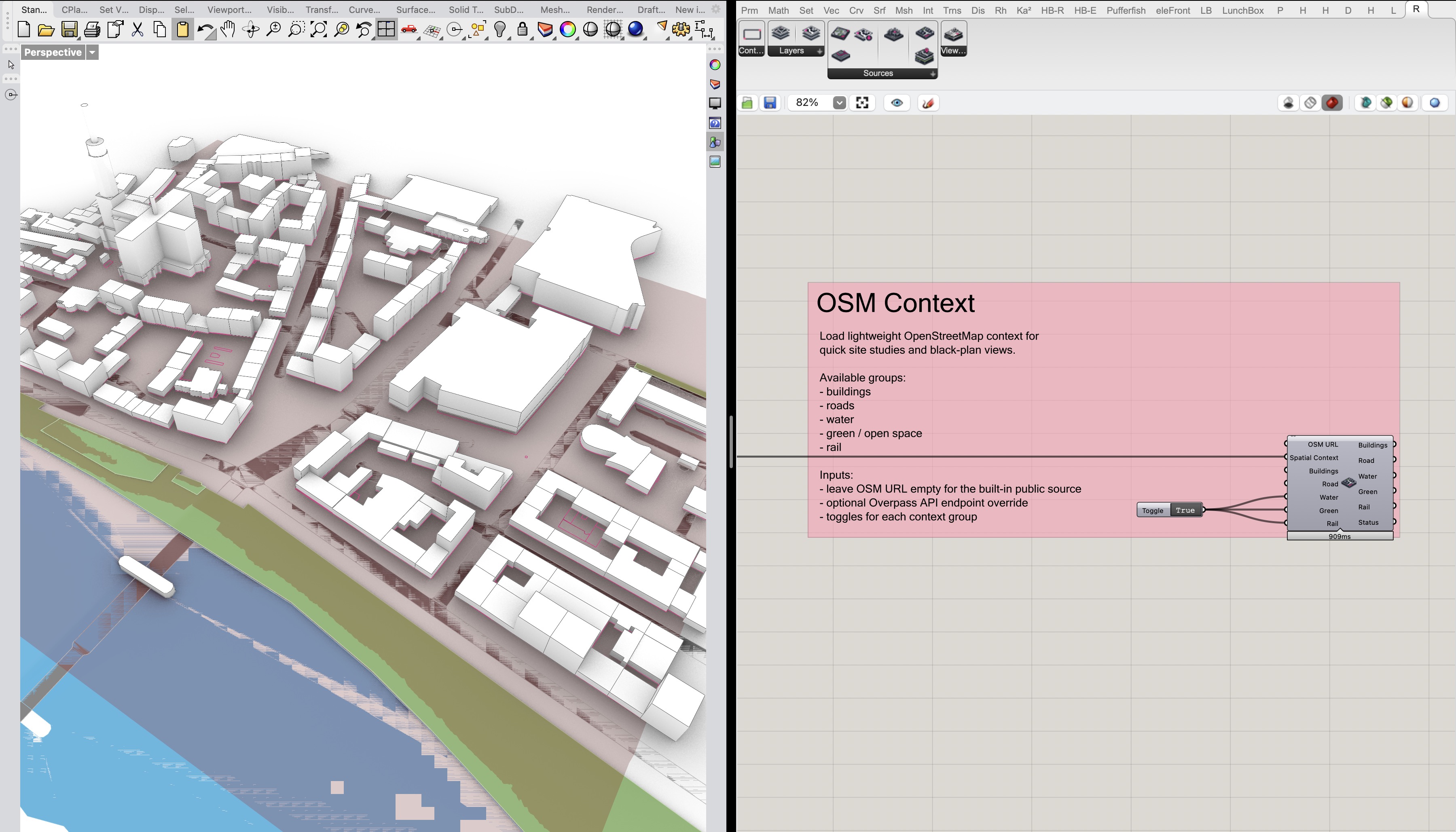
Use Load OSM for lightweight OpenStreetMap context. It is useful for quick black-plan style studies, site diagrams, and general orientation when official project data is not needed for every layer.
The component queries OpenStreetMap data through the Overpass API. Buildings and roads are enabled by default; optional Boolean inputs can add water, green or open space, and rail context.
OSM is excellent for quick context, but it is community-maintained data. Treat it as reference material unless your project explicitly accepts OSM as a source, and keep the selected area modest so the Overpass request remains responsive.
Load OSM adds lightweight context groups such as buildings, roads, water, green space, and rail.
9. 3D Tiles Viewer (Google)
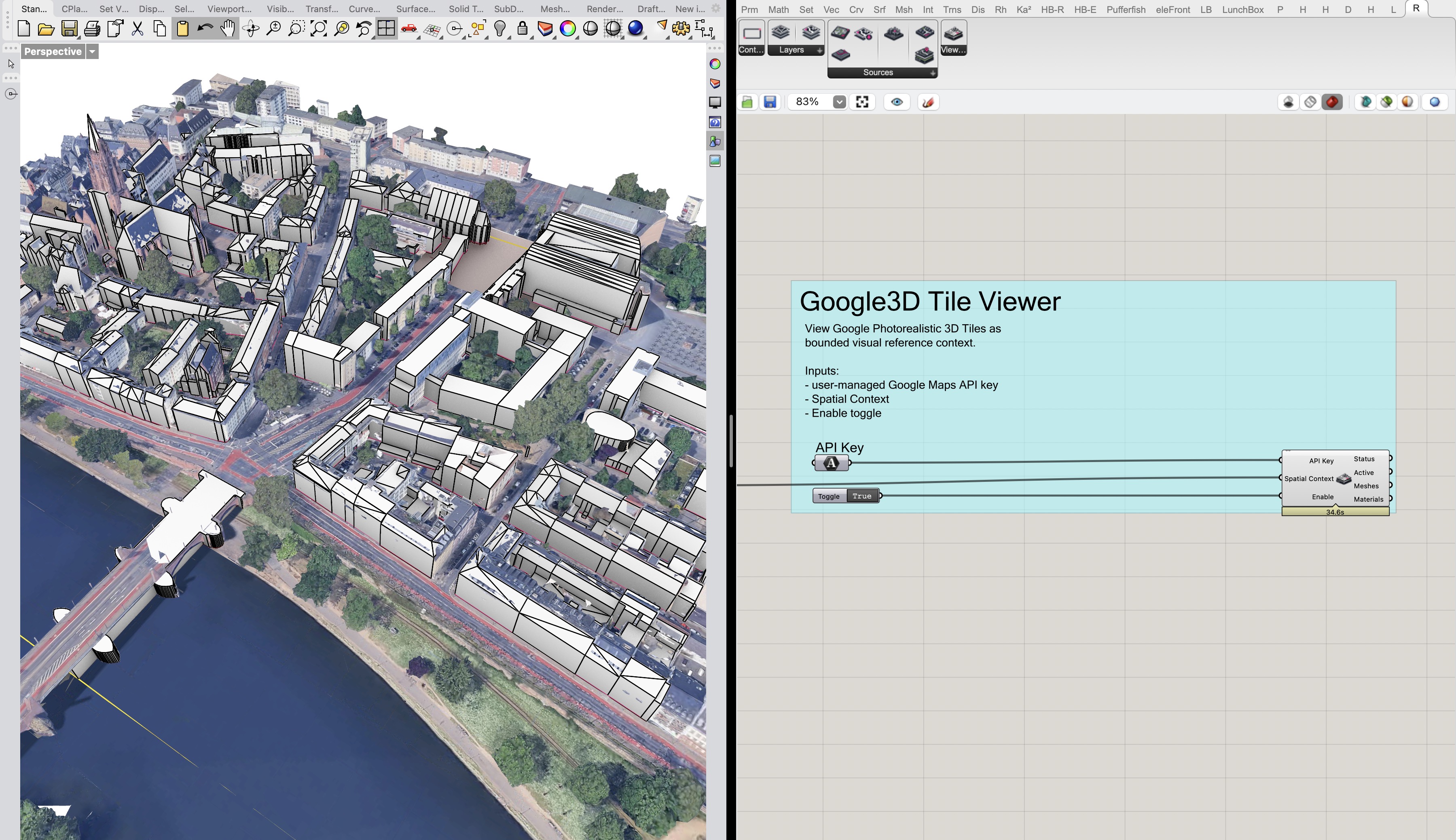
3D Tiles Viewer (Google) is different from the other source components. Treat it as a bounded visual reference viewer for Google Photorealistic 3D Tiles, not as a normal RhinoSpatial import source.
Connect the same Spatial Context, connect a user-managed Google Maps API key, and set Enable to True only while you want to inspect the reference context. RhinoSpatial requests bounded Map Tiles API content for the selected area, decodes a limited set of GLB tile content, and draws temporary preview meshes with aligned materials in the Rhino viewport.
The component itself does not bake its preview geometry: its bake methods are empty. It does output decoded preview meshes and materials to Grasshopper, but those outputs should be understood as contextual viewing support, not as an export path, offline cache, extraction workflow, or substitute for official project data.
Technically, RhinoSpatial keeps decoded tile content in memory during the session for preview display. It does not ship, store, or share a Google API key. Users still need to manage their own Google Cloud project, billing, API restrictions, attribution, and compliance with the current Google Maps Platform terms and Map Tiles API policies.
Google's Map Tiles API documentation is especially relevant here: Photorealistic 3D Tiles are framed as a visualization service, and the policies place restrictions around storage, caching, extraction, offline use, and attribution. If you use the viewer in real work, review the current policy, terms, billing, and EEA documentation before relying on it in a project workflow.